65% of New Zealanders were concerned in 2024 that organisations could lose their personal information in a cyber-attack, according to the Office of the Privacy Commissioner's 2024 privacy survey. That worry lands on your shared drives, cloud folders and laptop copies, not on a distant IT slogan. File storage security is the set of decisions that keep those files confidential, accurate and recoverable when a password is stolen, a link is sent to the wrong person, or ransomware starts renaming folders.
A filing cabinet with one lock is not secure if every staff member carries a copy of the key and the back door stays open. The same is true of a drive that everyone can open, a backup nobody has restored, and a pile of old payroll exports kept "just in case".
Why File Storage Needs a Security Plan
In 2024/25, New Zealand's National Cyber Security Centre recorded 88 ransomware reports, compared with 63 in 2023/24. One encrypted shared drive can stop client delivery, payroll and invoicing in the same afternoon. There is no separate "IT problem" and "business problem" once the files that run the week are unreadable.
National reporting shows the wider pressure. In the third quarter of 2023, CERT NZ responded to 2,136 reported cyber incidents between 1 July and 30 September. Of these, 109 incidents, 5% of the total, were explicitly reported as affecting organisations, and the quarter produced reported direct financial losses of NZ$4.7 million. Reporting is voluntary, so those organisation counts are a floor, not a census. Stolen credentials, malware and exposed systems are exactly how stored business files get taken or locked.
File storage security means keeping stored business information confidential, accurate and recoverable, whether it sits on a file server, a cloud drive or a laptop. Four exposures show up again and again.
- Stolen passwords: One reused login opens the shared drive and the mailbox that holds the reset links.
- Excess access: Staff and contractors keep rights long after the job that needed them has finished.
- Malware and ransomware: Shared folders are encrypted in bulk, including the copies people thought were "just sync".
- Wrong links: A file meant for one client is shared with a group, or a link never expires.
The plan is short. Know your files, control who reaches them, and prove you can restore them.
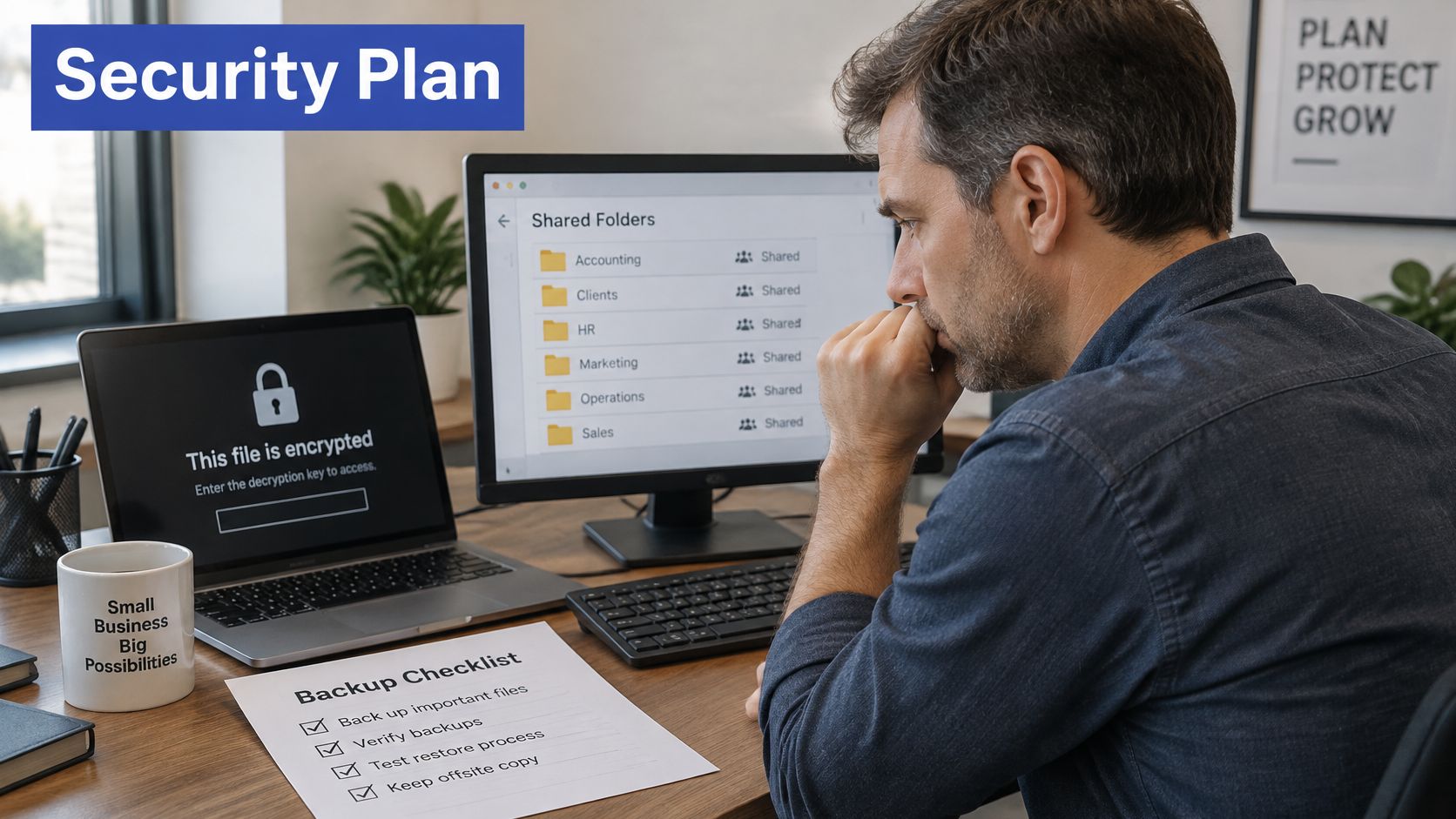
Answer three questions today, before you buy another tool. Where do our files live? Who can open them? Could we restore them tomorrow? If any answer is a shrug, that is the first gap to close.
Assess Your Risk and Set Controls by Data Class
A payroll export sitting beside lunch menus in the same shared drive is a breach waiting for a wrong click. Retention makes it worse. Every old copy you keep enlarges the set of files an attacker can lock or steal, so classification has to drive deletion as well as locks.
| Data class | Typical examples | Access rule | Encryption and keys | Sharing and retention |
|---|---|---|---|---|
| Public | Brochures, published reports, job ads | Anyone | Not required | Share freely; review content yearly |
| Internal | Policies, meeting notes, project plans | All staff | Encrypted at rest | Internal sharing only; delete when the project closes |
| Confidential | Customer records, contracts, pricing | Named roles, reviewed quarterly | Encrypted at rest; keys held apart from file admins | External links expire; sharing needs approval |
| Restricted | Payroll, bank details, health or identity data | Named individuals, every access logged | Encrypted at rest and in transit; dedicated key management | No external sharing; deleted on schedule |
Build the inventory behind the rows
- List where files live. Walk laptops, the shared drive, email attachments, CRM attachments and each cloud app. A "we use Microsoft 365" answer misses the bookkeeper's desktop export and the old Dropbox link still in a signature.
- Name an owner for each folder. That person decides who gets access. IT can apply the decision. IT should not invent it.
- Classify each folder against the four classes. When you are unsure, put it one class higher until the owner confirms.
- Score likelihood and impact from 1 to 5, multiply, and rank the top ten. Work those ten before you polish the rest.
Human error is the usual trigger, not an advanced attack. The Office of the Privacy Commissioner names human error as the biggest cause of serious privacy breaches. Say a bookkeeper emails a payroll export to a client's shared address instead of the payroll officer. The file is now in the wrong mailbox, and possibly in someone else's sync folder.
The fix is structural. Move payroll into the restricted class, with no external sharing and a named list of users. Set a short retention period and delete on schedule, because a file you no longer hold cannot be misaddressed or ransomed.
If you want a worked standard for how classes map to handling rules, the data classification guidance for MSSPs from ThreatExploit AI is a useful cross-check while you write your own classes. Keep your labels short enough that staff will use them.
Practical rule: If you cannot name the owner of a folder, you cannot defend the access list on it.
Finish with a risk register of five columns: folder, owner, class, top risk, next action. Every later decision, from sharing defaults to backup frequency, should point at a row in that register rather than at a new spreadsheet.
Cloud, On-Premises or Hybrid
Where the files sit changes who holds the keys, who patches, and how you get the files back. It does not change who is accountable for access.
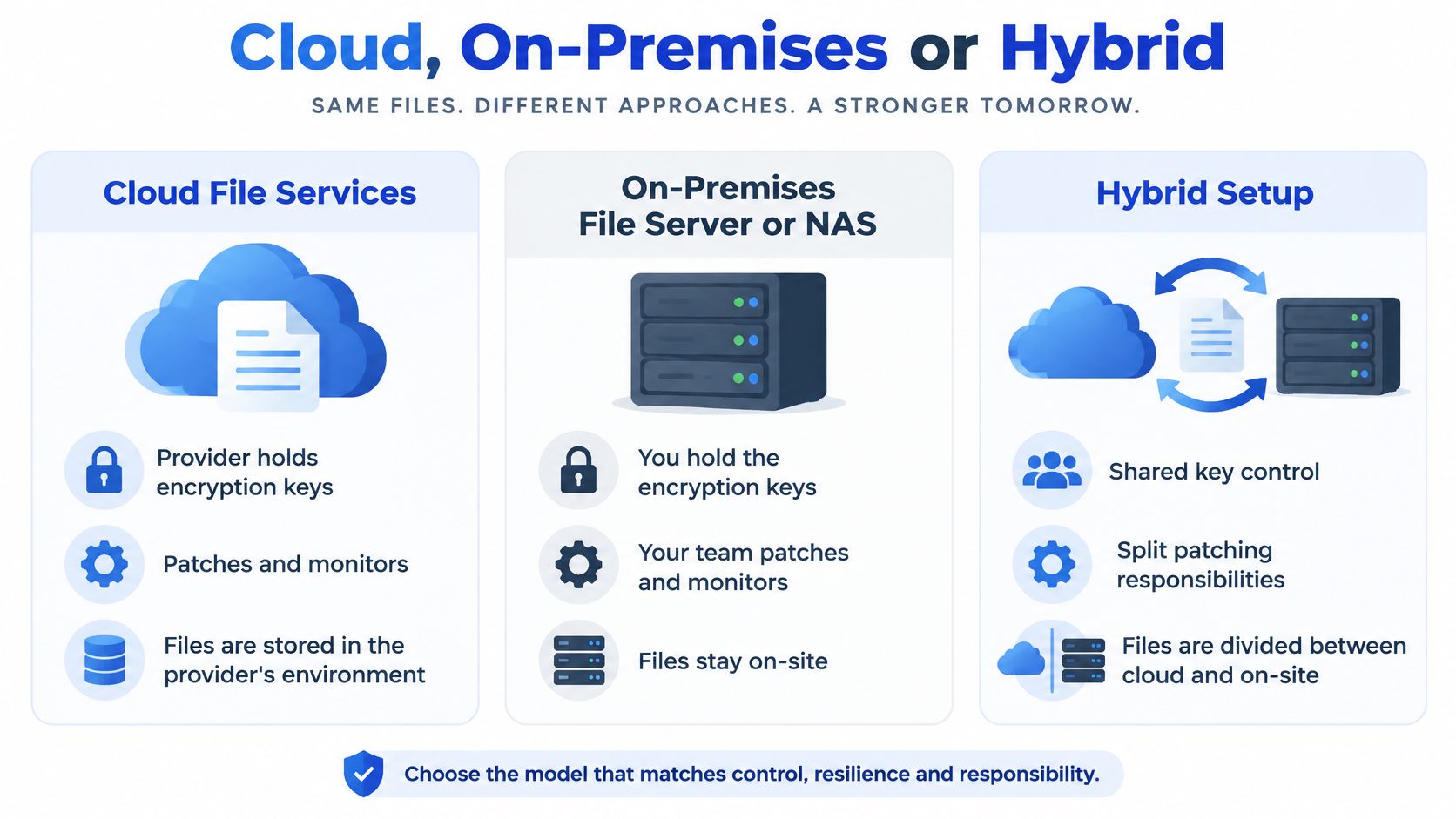
| Option | Who holds the encryption keys | Who patches and monitors | Recovery path | Best fit |
|---|---|---|---|---|
| Cloud file service | Provider or customer-managed, depending on plan | Provider patches the platform; you manage accounts and sharing | Provider versioning plus your own backup | Teams working from several sites |
| On-premises file server or NAS | Your business, held on your own hardware | Your business patches and monitors | Local backups with a separate offsite copy | Strict data location rules or legacy applications |
| Hybrid | Split by workload and documented | Split; the boundary written into a contract or agreement | Local restore plus a cloud copy | Businesses moving in stages |
The split nobody should leave unspoken
The provider secures the platform. You decide who has access, how they prove it, and you remove them when they leave. That is the customer side of shared responsibility, and it is the side that fails when a contractor's account is still live six months later. A tidy cloud setup still leaks if sharing defaults are "anyone with the link".
Privacy duties travel with the information. When a provider holds personal information on your behalf, your obligations do not stop at the login page. Contracts should spell out breach notification, access logging, data location, deletion and what subcontractors may do. Identity-driven cloud breaches show why that paperwork matters. Attackers often use a real account and ordinary admin features rather than a noisy virus, which is one reason cloud supply chain security concerns belong in the vendor conversation, not only in a security newsletter.
This is also a trust decision. In 2024, 70% of New Zealanders said they would likely change service providers after learning that a provider had poor privacy and security practices, according to the Office of the Privacy Commissioner.
A short walk-through of how teams compare these models in practice:
Choose cloud when staff work across several sites and you can manage identity well. Keep files on premises when data location rules or legacy systems force it. Choose hybrid when you are moving in stages, and write down which workload sits where before the first folder is copied.
Core Controls for Encryption, Access and Segmentation
Encryption is a lock on every box. The keys decide who gets in, so the keys need the same protection as the files they open.
Encryption and the keys
Encryption at rest scrambles files on disk and in backup. Encryption in transit protects them while they move, for example over a sync client or a remote session. An encrypted backup counts only after you have restored from it. A backup you have never opened is a hope, not a control.
The New Zealand Information Security Manual requires NZEO information to use an approved cryptographic algorithm when at rest, covering production, storage, backup and virtual systems, and it states that encryption keys require the same protection as the data they secure. You are probably not storing classified government material. The benchmark is still the right one for payroll, client files and production masters. Separate key administration from ordinary file administration. Hold keys in a dedicated key-management service or a hardware-backed store. Write rotation and revocation steps, and test recovery before you trust the backup.
Full-disk encryption on laptops reduces the damage from a lost bag. It does not stop an authenticated attacker, or ransomware, from reading a drive that is already accessible and mounted. Pair it with least privilege, an immutable or offline backup copy, and alerts on unusual bulk reads.
Access and separation
Give people individual accounts. Turn on multi-factor authentication wherever the service offers it, and prefer a phishing-resistant method for anyone who can change sharing or keys. Put people in role-based groups, not one-off exceptions. Review those groups quarterly and remove anyone whose role has changed.
Segment the stores. Finance and HR shares should not sit in the same permission set as general project folders. Backup servers should be reachable by the backup job and a small admin group, not by every staff login. Place file storage on its own network segment so a compromised laptop is not already inside the share.
Software the vendor no longer supports is a hard stop. It stops receiving security patches, which is why we treat it as the exception that needs a move plan rather than another year of "it still opens". A managed security arrangement can watch the patch gap. It cannot invent patches the vendor will not ship.
Can one compromised password open every folder? If yes, fix that this week, before you add another product.
How to Roll Out File Security Step by Step
Tools enforce decisions. Someone has to make the decisions first, which is why ownership and access come before encryption settings and new licences.
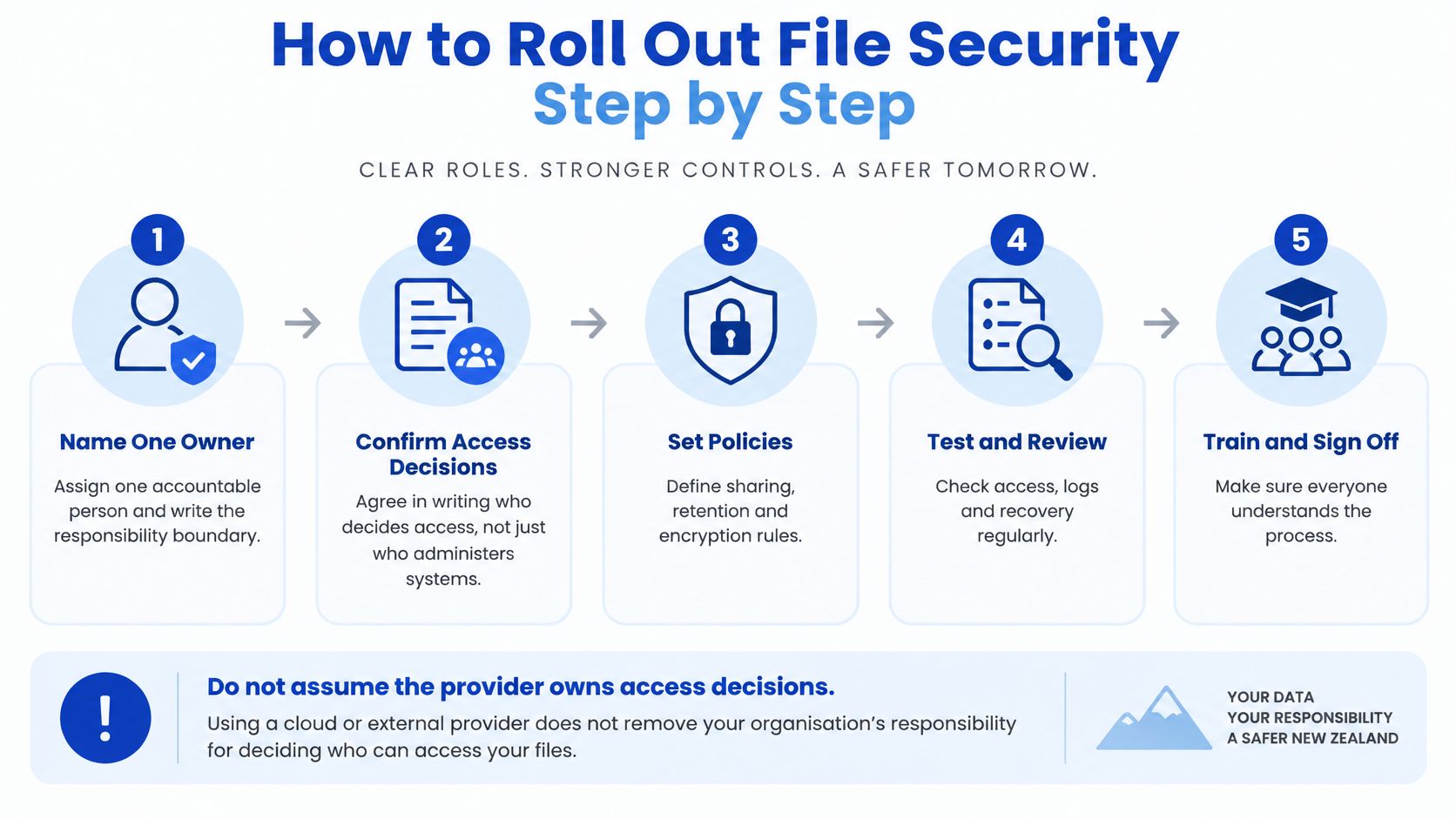
- Name one accountable owner and agree the responsibility boundary in writing with your internal IT person or your managed provider. We work alongside that internal person and put the boundary in writing so "the provider will handle it" does not become the default. The common slip is assuming the provider owns access decisions. They do not. You do.
- Inventory and classify the top folders using the class table. Start with payroll, customer files and anything a client would notice if it leaked. Reason: you cannot set a sharing rule for a folder you have not named.
- Set access groups and multi-factor authentication, and run a joiner, mover and leaver checklist covering accounts, licences, devices, shared access and mailbox handling. That checklist is how we run onboarding and offboarding, because a missed shared link is as real as a missed login. The common slip is leaving a former contractor's shared-link access active after the account is disabled.
- Enable encryption, confirm where the keys sit, and record who can administer them. Reason: encryption without a named key holder fails the day that person leaves.
- Set sharing defaults. Block external sharing for restricted data. Expire links for confidential data. Reason: defaults beat good intentions. People share the way the button is set.
- Test one restore from backup and time it against the targets you will use for critical, important and standard files. Reason: an untimed backup is an unread one.
- Schedule a quarterly review of access, sharing and the risk register. Reason: permissions drift every time someone changes role.
What finished looks like
Every folder has an owner. Every leaver's access, including shared links, was removed the same day. One restore has been timed against the target, and the time is written down. If any of those three is missing, the rollout is still in progress, even if the software is fully licensed.
Do not buy a second platform to hide a missing owner. The owner is cheaper, and nothing else works without them.
Monitoring, Incident Response and Backups
A finance share that misses four nightly backups in a row is telling you the restore will fail. Listen early. Recovery targets should match how badly the business hurts, not how often the backup software likes to run.
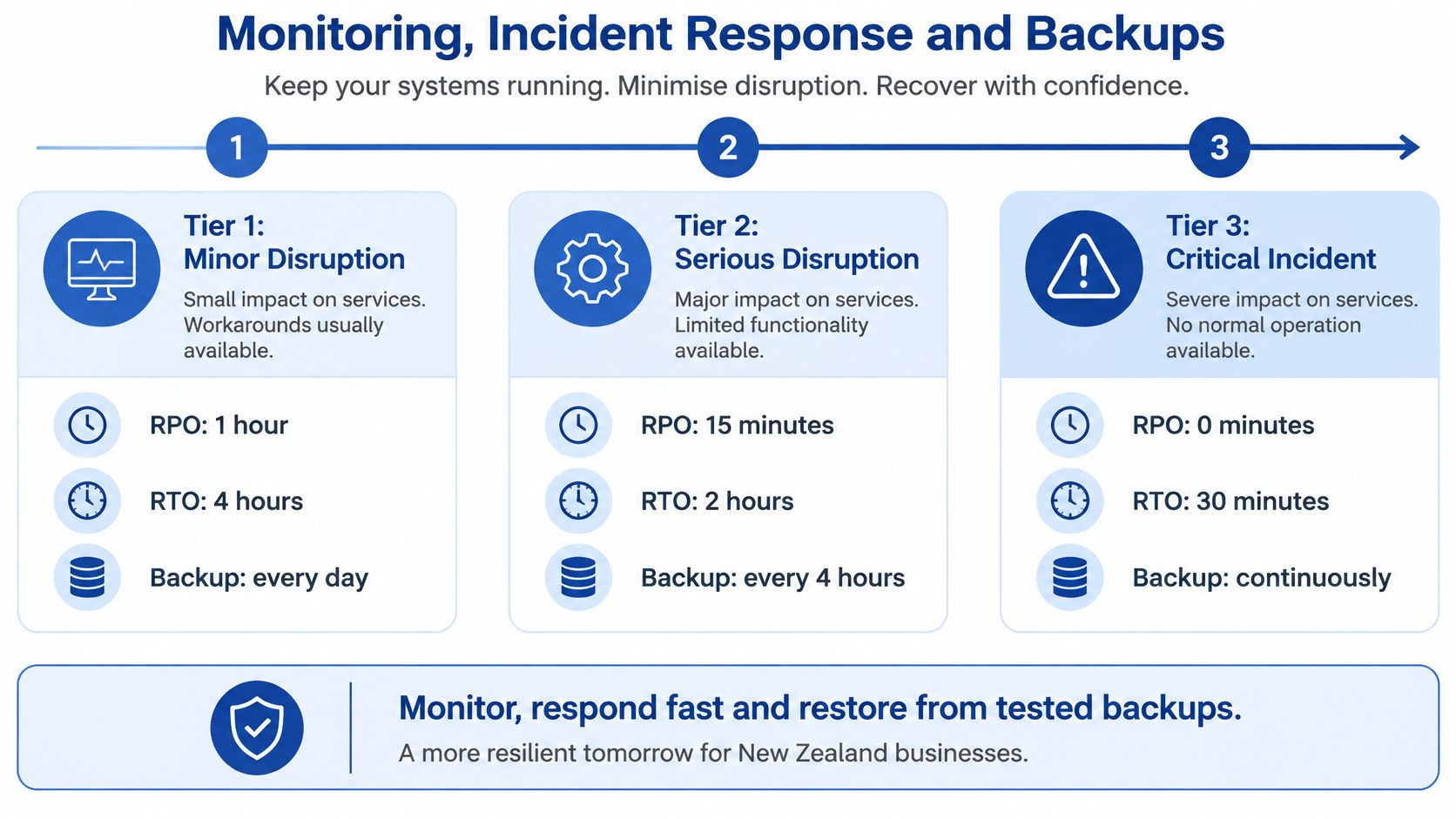
| Impact tier | Example systems | Target RPO | Target RTO | Backup approach |
|---|---|---|---|---|
| Critical | Live client delivery and active project files | 1 hour | 4 hours | Frequent incremental backups with an immutable offsite copy |
| Important | Finance records and shared drives | 24 hours | 24 hours | Daily backup with one offsite copy |
| Standard | Archives and closed projects | 7 days | 5 business days | Weekly backup with a quarterly restore test |
RPO is how much recent work you can afford to lose. RTO is how long you can be down. A critical edit suite that loses a day of client delivery has missed a one-hour RPO even if the server comes back by morning.
Set alerts for disks filling, backups failing, certificates expiring and services stopping. Those four conditions turn a normal Tuesday into an outage. Add alerts for mass renames, unusual bulk reads and a sudden burst of encryption activity on a share that is normally quiet. Ransomware often looks like that before any ransom note appears.
Work an incident in this order:
- Contain: Isolate the affected accounts and machines. Do not keep browsing the share to see how bad it is from a still-connected PC.
- Preserve logs: Export them before anyone rebuilds the server. Rebuilds destroy evidence.
- Establish scope: List which files, and which personal information, were opened, copied or encrypted.
- Notify: Tell affected people, and notify the Privacy Commissioner where a notifiable privacy breach has occurred.
- Recover from clean copies: Prefer an immutable or offline copy. Ransomware cannot encrypt what it cannot reach.
Log every incident, including the small ones. Logs every incident in its incident management practice rather than fixing it and forgetting it, because repeat patterns show up in the log before they show up as a major event. One failed backup is noise. Four failures on the same share point to a disk, a permission or a job that needs attention.
Long term media archives need checksum checks and retention rules, such as a managed archive for media production workflows. That job differs from daily file restores. One backup job cannot serve as both the hot restore and the ten year archive without failing at one of them. Extra retained copies also widen what an attacker can reach, which is another reason to separate archive from operational backup.
If a disk has already failed and the backup copy is unreadable, specialist help such as recovering data from a failed hard drive is a last resort, not a plan. It is slower and less certain than a tested offsite copy.
Restore one folder from the critical tier this month. Write down the start time, the finish time, and whether the files opened. That number is your real RTO.
Retention, Deletion and Compliance Duties
Keeping every file "just in case" is not cautious. It enlarges the attack surface, makes any breach larger, and turns a simple information request into a scavenger hunt across drives, mailboxes and old exports.
The Privacy Commissioner's Manage My Health inquiry makes the point with scale. The Commissioner found that approximately 100,000 patients were affected and concluded that retaining information for too long breached Privacy Act information-retention requirements. The case also involved hospital discharge documentation and third-party portal access. Obsolete copies were not a storage-cost footnote. They were part of the exposure.
Keep it only while the purpose holds
Keep personal information only as long as the purpose requires, then dispose of it securely. A retention schedule needs four columns, not a slogan.
| Column | What you write |
|---|---|
| Business purpose | Why this set exists, in one sentence |
| Legal obligation | The rule that forces you to keep it, or "none identified" |
| Backup expiry | The date backup copies age out |
| Deletion evidence | Log entry, vendor confirmation, or both |
Deletion has to reach further than the live folder. Cloud drives, exports and downloads, email attachments, CRM attachments, backups and former-user accounts all hold copies. A former staff laptop sync is still a copy. So is the CSV someone downloaded "for a report" and left in Downloads.
Evidence is what makes deletion real. Keep a dated deletion log, written confirmation from vendors that their copies are gone, and documented backup expiry dates. If you leave a provider, you should still hold the tenancies, domains and licences in your own name, and you should be able to take the documentation of the environment with you. Without that, you cannot prove what was deleted, or where the last copy sat.
Obsolete files do not become harmless because nobody has opened them this year. They become a larger pile for the next person who gets in.
Write the schedule for your three largest data sets this month, starting with customer records and employee records. Delete or archive the first set that has no current purpose. Measure the win by folders removed, not by gigabytes saved.
Decide Which Fix Comes First
Most small businesses I brief are not missing a strategy document. They are missing one obvious control, and they are about to buy a tool that does not fix it.
Match the first move to the situation in front of you.
- No multi-factor authentication: Switch it on for email and file accounts before anything else. A new backup product will not help if the attacker logs in as you.
- Never tested a restore: Run one this week. Do it before you buy another licence. Time it against the critical-tier target.
- Former staff still have access: Fix the leaver process first. Disable the account, kill active sessions, remove group memberships, and revoke shared links the same day.
- Files on personal devices: Classify them, then move them into managed storage. A home laptop with a synced copy of payroll is a restricted store with no owner.
When to bring someone in
Bring in an internal IT lead or a managed security provider when you handle payroll, health, card or client-confidential data, when a client or auditor asks for evidence of controls, or when a restore test fails. We offer managed security services, penetration testing and compliance support for New Zealand and Australian businesses, and the useful test of any provider is whether they will show the same evidence you should already be keeping: the risk register, the access reviews, and a timed restore result. For media teams, end-to-end security for content pipelines, from ingest to delivery, belongs in that same evidence pack, not in a separate promise.
Book a short review of the risk register. Bring the five-column register and the timed restore result so the first fix is chosen from evidence rather than from a product brochure.
Wisely helps New Zealand and Australian businesses put file storage security into daily practice, from identity and access through monitored backups and managed security. If your register still has folders with no owner, or you have never timed a restore, that is the right place to start. Visit Wisely and bring your risk register to the first conversation.